How to reduce ping: 15 fixes that actually lower lag in games, in the order that works
- Measure first: turn on the game's network stats (ping, spikes, packet loss) so you can tell whether a fix worked.
- The four fixes that solve most cases are free: pick the closest server, use a cable instead of Wi-Fi, pause downloads on every device and turn on SQM or QoS on the router.
- Distance sets a floor you cannot beat: about 1 ms of round trip per 100 km in the best case. No setting lowers ping below that.
- DNS changes, a faster plan on an idle line or a new graphics card do not lower in-game ping.
- A ping booster only helps when your provider's route to the server is poor. Test it during a free trial, after the free fixes.
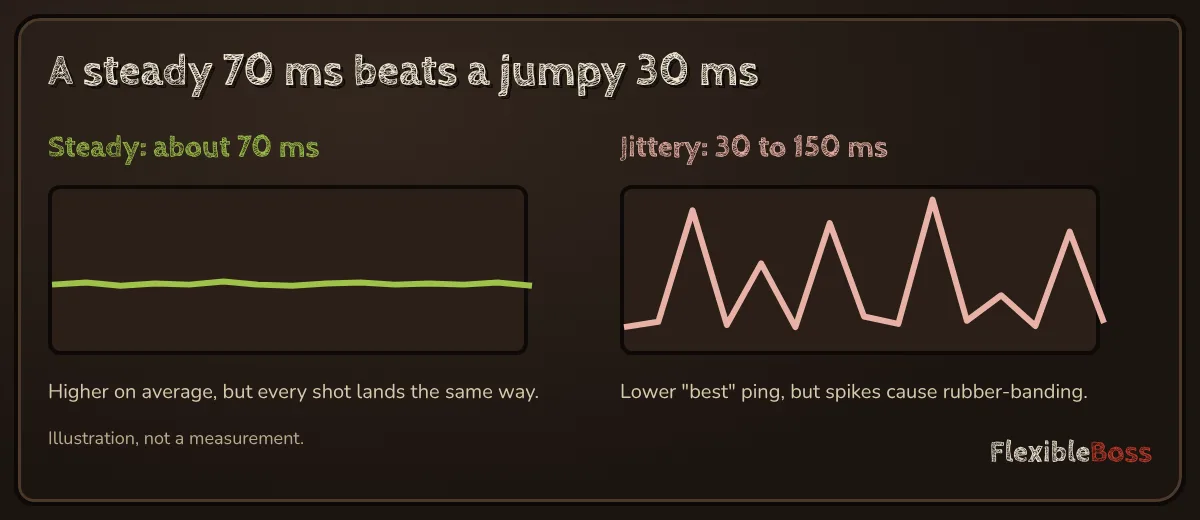
Ping is the time a small piece of data takes to travel from your device to the game server and back, measured in milliseconds (ms). Lower is better, but steady matters just as much: a ping that jumps around feels worse than one that is a little higher and flat. This guide shows how to reduce ping step by step, starting with the fixes that cost nothing and solve the most cases, and ending with the one situation where paying for a ping booster makes sense.
It works for PC, PS5, Xbox and Switch, and for any online game: Fortnite, Call of Duty, Valorant, CS2, Roblox, Battlefield 6, ARC Raiders and the rest. Where a game or console has its own setting, we point to the official menu.
How to reduce ping: the short version
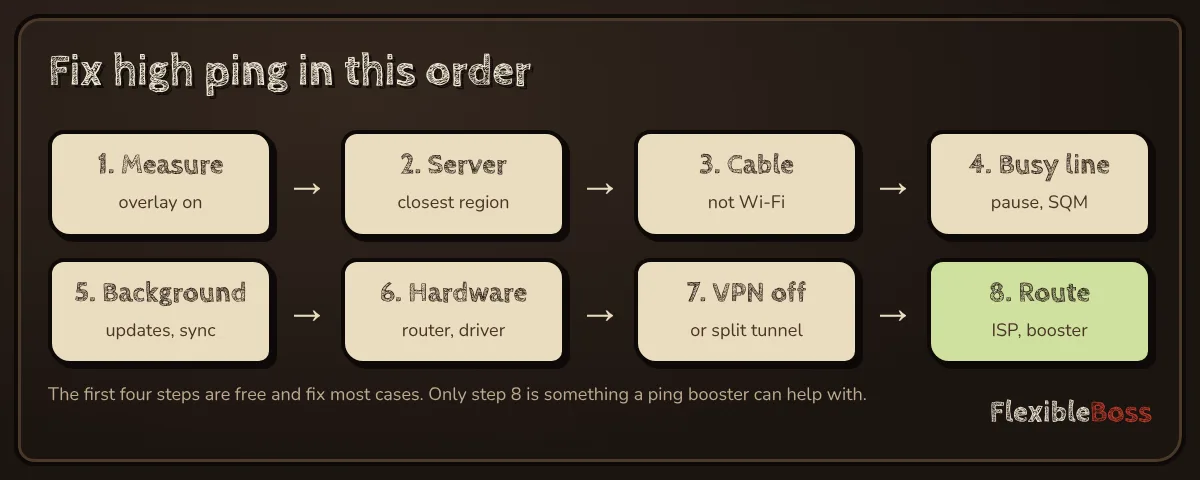
If you only have five minutes, do these in order and check your ping after each one:
- Turn on the in-game network stats and note your ping, the spikes and any packet loss.
- Pick the closest server or region the game offers.
- Plug in an Ethernet cable instead of using Wi-Fi.
- Pause downloads, uploads and streams on every device in the house, including game launchers and cloud backups.
- Turn on SQM or QoS in your router's settings, if it has them.
Most people who follow these five steps see the biggest improvement they will ever get. Everything after this is for the cases that remain.
What is a good ping? (Is 100, 200 or 400 bad?)
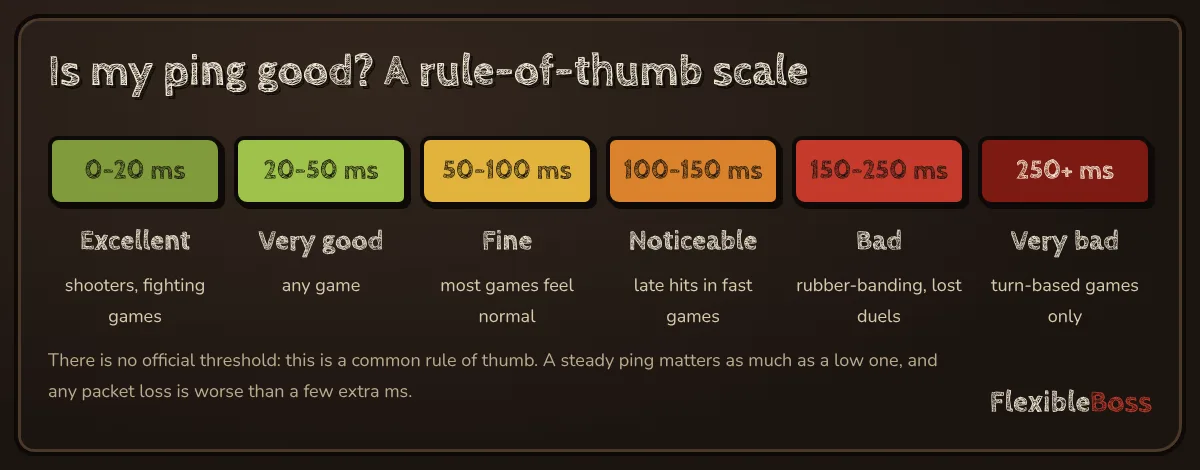
There is no official number, but players and developers broadly agree on this scale:
| Ping | Rating | What it feels like |
|---|---|---|
| 0–20 ms | Excellent | Instant. Ideal for competitive shooters and fighting games. |
| 20–50 ms | Very good | No noticeable delay in any game. |
| 50–100 ms | Fine | Most games feel normal; close duels may go against you. |
| 100–150 ms | Noticeable | Hits land late in fast games; still fine for most others. |
| 150–250 ms | Bad | Rubber-banding, shots that "should have hit", lost trades. |
| 250 ms and more | Very bad | Only turn-based or slow strategy games stay comfortable. |
So, to answer the most searched questions:
- Is 100 ping bad? No, but you will feel it in fast shooters.
- Is 200 ping bad? Yes, for real-time games. It usually points to a distant server, unstable Wi-Fi or a busy line.
- Is 400 ping bad? Yes, very. At that level, check for a VPN, a wrong region or a download running in the background.
Ping is only one of three numbers to watch:
- Jitter is how much your ping changes from one moment to the next. Epic's own Fortnite help lists it as a cause of lag alongside ping.
- Packet loss is data that never arrives. Epic says packet loss that stays above about 1% causes problems in Fortnite, and the same holds for most fast games.
- Ping itself, the average round trip.
Where to see your ping (PC, PS5, Xbox, Fortnite, Roblox, CS2)
Before you change anything, find the real numbers. A guess like "it feels laggy" can come from low frame rate, a busy server or the network, and each has a different fix.
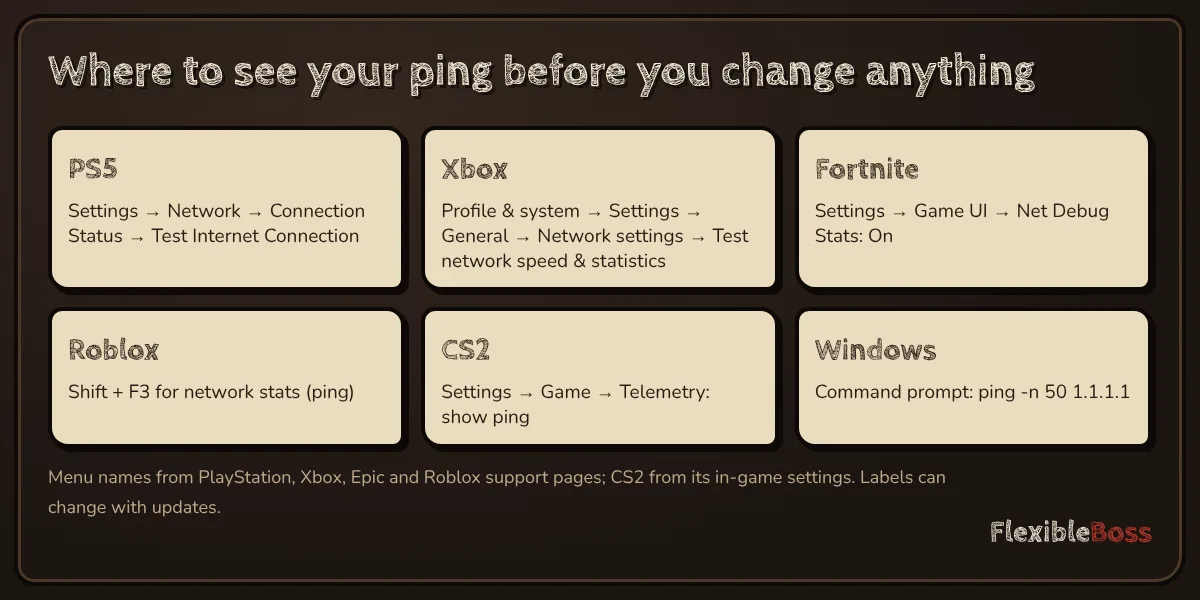
| Platform or game | Where to find ping |
|---|---|
| PS5 | Settings → Network → Connection Status → Test Internet Connection |
| Xbox Series X|S / One | Profile & system → Settings → General → Network settings → Test network speed & statistics |
| Fortnite | Settings → Game UI → Net Debug Stats (On) |
| Roblox | Shift + F3 shows network stats, including ping |
| CS2 | Settings → Game → Telemetry (show ping always or only when poor) |
| Battlefield 6 | Options → System → Network → Scoreboard Ping |
| Windows (any game) | Command prompt: ping -n 50 1.1.1.1 for a quick neutral test |
A console's own test measures the connection to the internet, not to your game's server, so treat it as a health check. The in-game display is the number that matters, because it measures the path to the server you are actually playing on.
A tip for Windows: the 50-ping test above takes under a minute. If it shows high numbers or "Request timed out" lines while nothing else is running, the problem sits in your own connection, not in the game. If it looks clean but the game does not, look at the server and the route.
Why your ping is high: the five usual suspects
Nearly every high-ping case comes from one link in this chain:
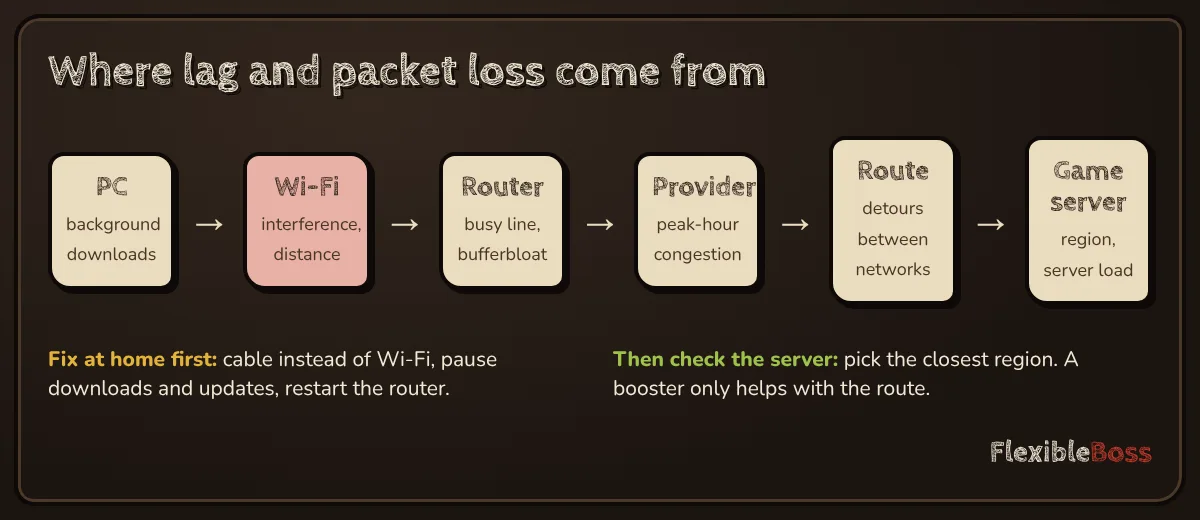
- Distance to the game server.
- Wi-Fi between your device and the router.
- A busy line: other people or devices filling your connection.
- Your own device downloading or syncing in the background.
- The route your provider takes to the server.
The fixes below follow that order, because the first ones are free, quick and solve the most.
15 ways to lower ping, ranked by impact
1. Choose the closest server or region
This is the single biggest factor, and the one people check last. Data in optical fibre moves at roughly two-thirds of the speed of light, about 200,000 km per second. That gives a hard floor: about 1 ms of round trip for every 100 km between you and the server, before a single router adds any delay.
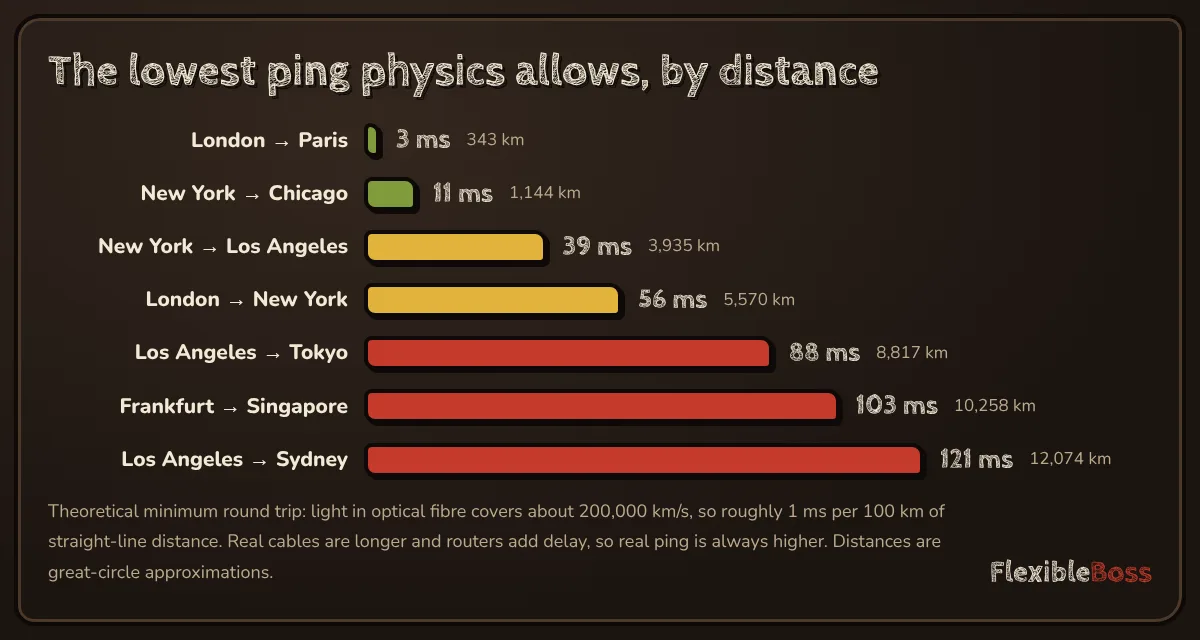
| Route (straight line) | Distance | Lowest possible ping |
|---|---|---|
| London → Paris | ~340 km | ~3 ms |
| New York → Chicago | ~1,140 km | ~11 ms |
| New York → Los Angeles | ~3,940 km | ~39 ms |
| London → New York | ~5,570 km | ~56 ms |
| Los Angeles → Tokyo | ~8,820 km | ~88 ms |
| Frankfurt → Singapore | ~10,260 km | ~103 ms |
| Los Angeles → Sydney | ~12,070 km | ~121 ms |
Our arithmetic from great-circle distances. Real cables are longer and every router adds a little, so real ping is always above these figures.
What to do: set the matchmaking region to the closest data center when the game allows it. If it does not, look for a server browser or custom servers: in Battlefield 6, for example, EA points players to the Server Browser in Portal to pick a nearby server. If your ping is high but perfectly flat in every match, distance is almost certainly the cause, and no setting at home will change it.
2. Use an Ethernet cable instead of Wi-Fi
Wi-Fi is a shared radio channel. Walls, other rooms, neighbours' networks, Bluetooth and even microwaves compete for it, and when a packet is lost in the air it has to be sent again. That is where most spikes and packet loss at home come from.
What to do: connect your PC or console to the router with a cable. Any Cat 5e or newer cable is fine for gaming. Then play one match and compare. If the spikes disappear, you have found your problem.
Can't run a cable?
- Use the 5 GHz (or 6 GHz) band rather than 2.4 GHz if you are within a room or two of the router.
- Move the router out of cupboards and away from the floor, or move closer to it.
- Try a powerline adapter, which sends the network through your home's electrical wiring, or a mesh node placed near your setup with a cable from the node to the device.
3. Stop other people's downloads from wrecking your ping (bufferbloat)
If ping is fine in the morning and terrible when the rest of the household is home, the line itself is too busy. When a big upload or download fills your connection, your router puts packets in a queue, and your game's tiny packets wait behind them. Networking people call this bufferbloat.
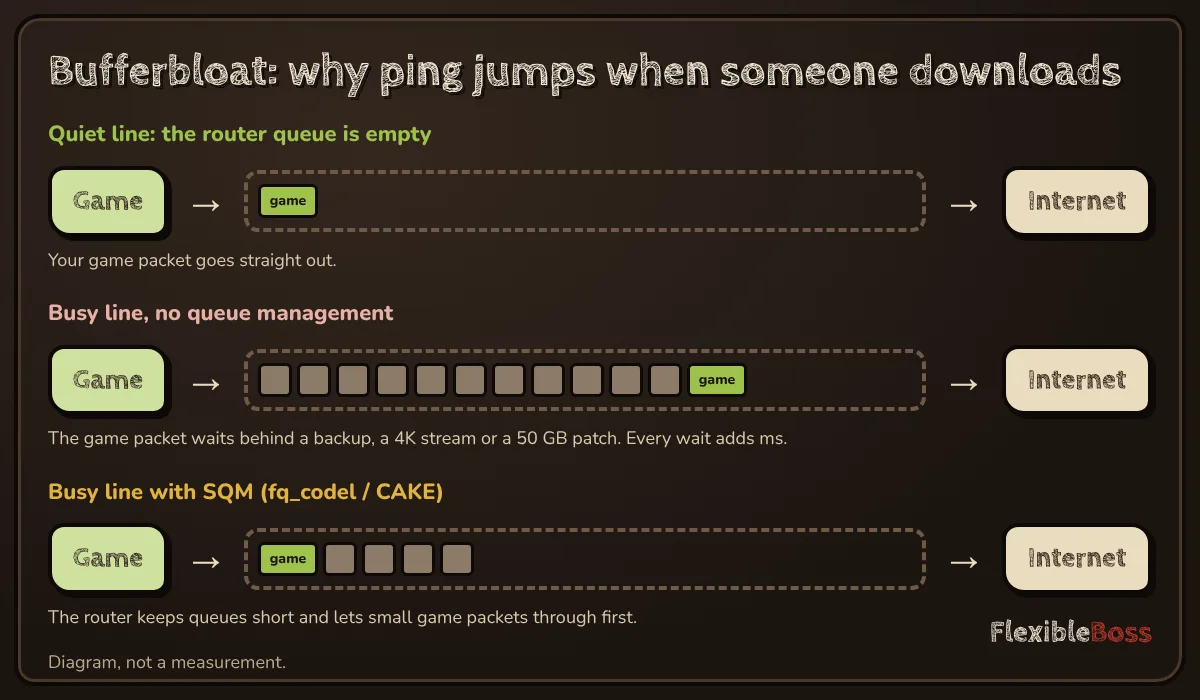
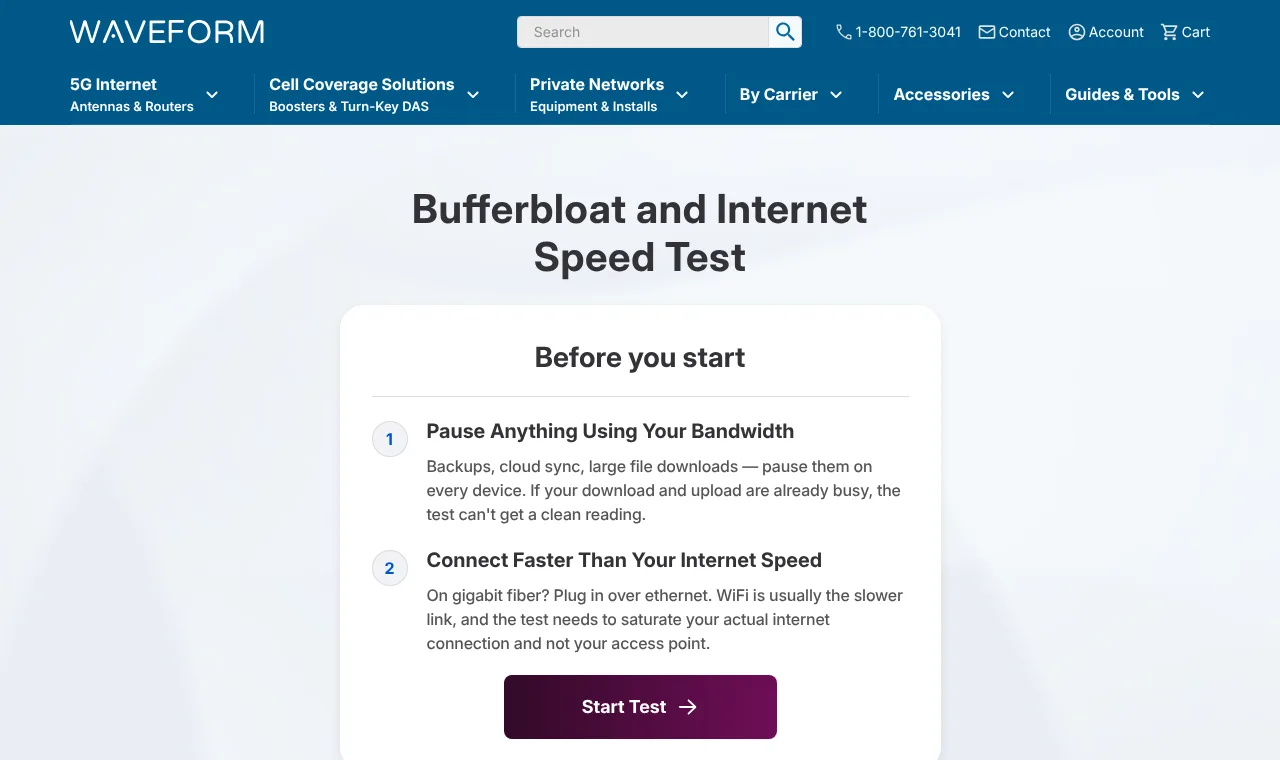
How to test it: use a speed test that measures latency under load, not just at idle. The Waveform bufferbloat test and the Cloudflare speed test both show how much your latency rises while the line is busy. If ping jumps by tens or hundreds of milliseconds during the download part of the test, you have bufferbloat.
What to do:
- Pause cloud backups, torrents, game downloads and 4K streams while you play.
- Ask the household for a quiet hour during important matches (it works better than you think).
- Turn on queue management on the router; see the next fix.
4. Turn on SQM or QoS in your router
Many modern routers include Smart Queue Management (SQM), often shown as "fq_codel", "CAKE" or "Adaptive QoS". It keeps queues short so that small, time-sensitive packets (games, voice calls) are not stuck behind bulk traffic. Simpler routers have QoS, which lets you give a device or "gaming" traffic higher priority.
What to do: look in your router's web interface or app under QoS, Traffic Management or Gaming. If you can set your line speed manually, set it a little below what your speed test shows, so the router (not your provider's equipment) controls the queue. Then run the bufferbloat test again.
Some routers and gaming platforms also mark game traffic so routers can prioritise it: Xbox, for example, documents tagging of multiplayer traffic for quality of service. It only helps if your router respects those marks, so SQM is the more reliable fix.
5. Stop background downloads on your own device
Your own PC or console may be the busy device. Game launchers patch other games, Windows downloads updates, and cloud folders sync quietly.
What to do:
- Steam: in Settings → Downloads, turn off downloads during gameplay.
- Other launchers (Epic, Battle.net, EA app, Ubisoft Connect): pause their downloads or close them.
- Windows 11: Settings → Windows Update → Advanced options → Delivery Optimization, and switch off "Allow downloads from other devices". On Windows 10 the setting is called "Allow downloads from other PCs". Microsoft explains that this feature shares update pieces with other computers, which uses your upload.
- Cloud sync (OneDrive, Google Drive, Dropbox): pause syncing while you play.
- Consoles: finish or pause downloads before you start a match.
Open Task Manager (Ctrl + Shift + Esc) and look at the Network column while you play: anything using a lot of it besides the game is a suspect.
6. Turn off a normal VPN (or use split tunnelling)
A regular VPN sends all your traffic through an extra server, often in another city or country, which adds distance and therefore ping.
What to do: disconnect it while gaming, or use split tunnelling so the game goes around it. Ping boosters are a different kind of tool: they route only game traffic and pick the path to the game server (more on them in fix 15).
7. Restart the router and modem
Routers run for months without a break, and some slowly get worse as their memory fills or their connection tables grow. A restart is a quick test.
What to do: turn the router and modem off, wait 30 seconds, turn them on. If ping improves for a few days and then creeps up again, the router is struggling, and fixes 8 and 9 are for you.
8. Update the router firmware, or replace an old router
Old or very cheap routers handle many connected devices poorly, and some never receive updates. Firmware updates can fix bugs and add features such as SQM.
What to do: check for a firmware update in the router's interface. If your router is the free one your provider gave you years ago and it has no QoS or SQM, a modern router with SQM is one of the few purchases that reliably lowers ping under load.
9. Update the network driver and disable power saving (PC)
On Windows PCs, an outdated network driver or an aggressive power-saving setting on the network adapter can add delay or drop packets.
What to do:
- Install the latest network driver from your motherboard or adapter maker's website.
- In Device Manager → your network adapter → Properties → Advanced, turn off options such as "Energy-Efficient Ethernet" or "Green Ethernet" if you see them.
- On Wi-Fi adapters, set power saving to maximum performance in the advanced settings or the Windows power plan.
If only one PC is laggy while other devices on the same network are fine, this is where to look.
10. Close apps that use the network
Video streams, music in high quality, browser tabs that auto-play, video calls and file-sharing apps all share your line. Each one alone may be fine; together they can push the line into bufferbloat.
What to do: close what you are not using. Voice chat is usually light and fine to keep.
11. Pick a wired-friendly console or PC network setting
On consoles, choose the wired connection in the network settings once the cable is in, and run the console's connection test again. On PCs with both Wi-Fi and Ethernet, turn Wi-Fi off while gaming so Windows does not switch between them.
12. Check the game server status
Sometimes the problem is not yours. New seasons, launches and outages overload servers for everyone.
What to do: check the game's official status page or social accounts. If everyone in your lobby is lagging, or friends elsewhere see the same thing, wait it out or try another region for a while.
13. Play at a different time
Provider networks get busiest in the evening, when everyone streams. If your ping on a cable, with nothing else running, is good in the morning and bad at 9 pm, that points to congestion outside your home.
What to do: note the times when ping is bad. It is useful evidence for the next fix.
14. Report the route to your provider
If the problem is between your provider and the game server, only the provider (or a different route) can fix it.
What to do: run a traceroute on Windows with tracert followed by the game server's address, or a nearby address in the same region, and look at where the times jump. Send the result, the times and the game to your provider's support. Some will move you to a less congested part of their network; some will not, which is when fix 15 becomes reasonable.
15. Try a ping booster, but only for route problems
Ping boosters (also called ping reducers or gaming VPNs), such as ExitLag, NoPing or LagoFast, send your game traffic into their own network close to you and choose the path to the game server. They can lower ping and spikes when your provider's route is the problem: peak-hour congestion, detours between networks, or playing on a server in another region.
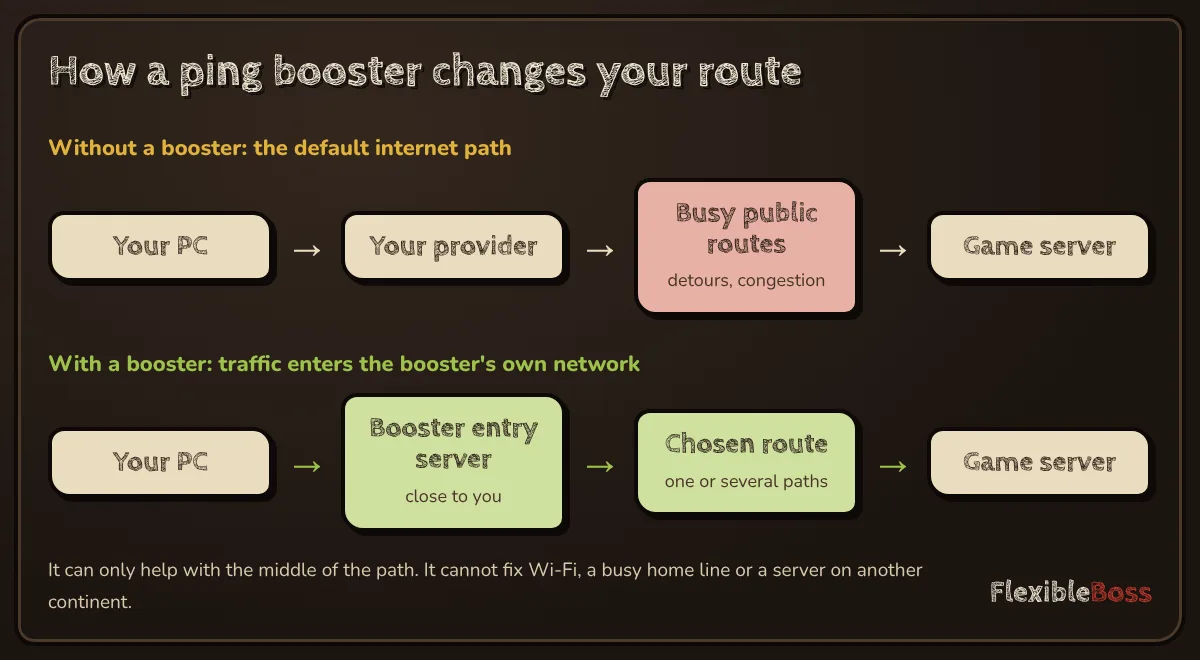
They cannot fix Wi-Fi, a busy home line, background downloads or a server on another continent. That is why this fix is last.
How to test one fairly: use a free trial, play the same game on the same server at the same hour, once with and once without the booster, and compare ping, spikes and packet loss on the in-game display.
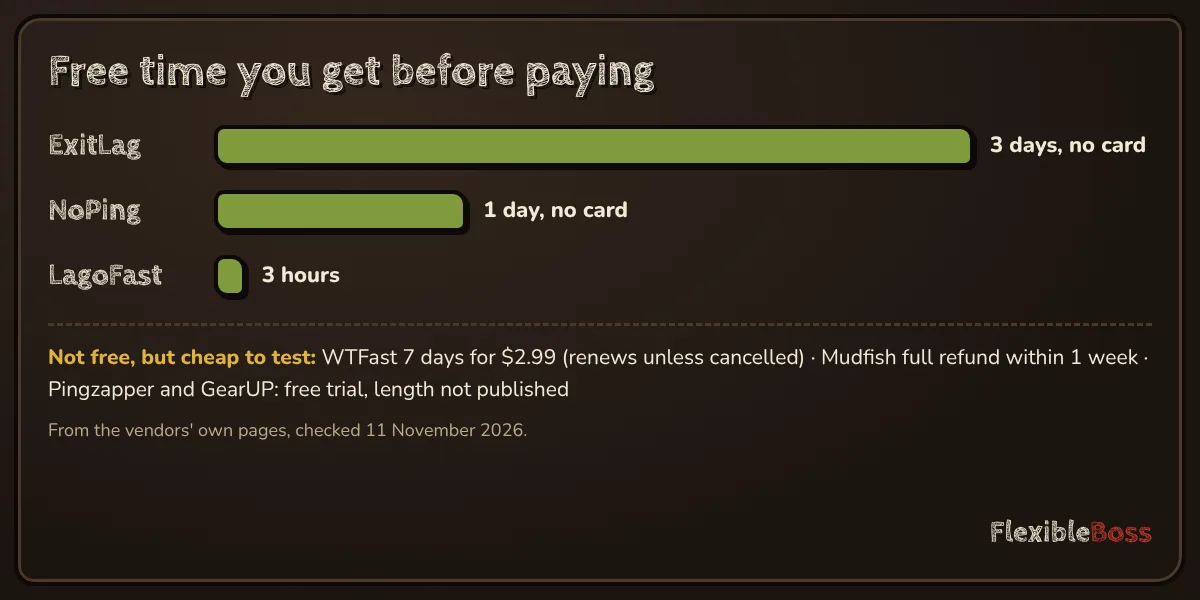
Our guide to the best free ping boosters explains what each trial includes, and the ExitLag alternatives page compares the paid options side by side. If you do decide to pay, check ping booster deals for official codes and trials first.
Speed is not ping: why a faster plan rarely helps
Internet providers sell speed in megabits per second, so it is natural to think a faster plan means lower ping. It does not, on its own.
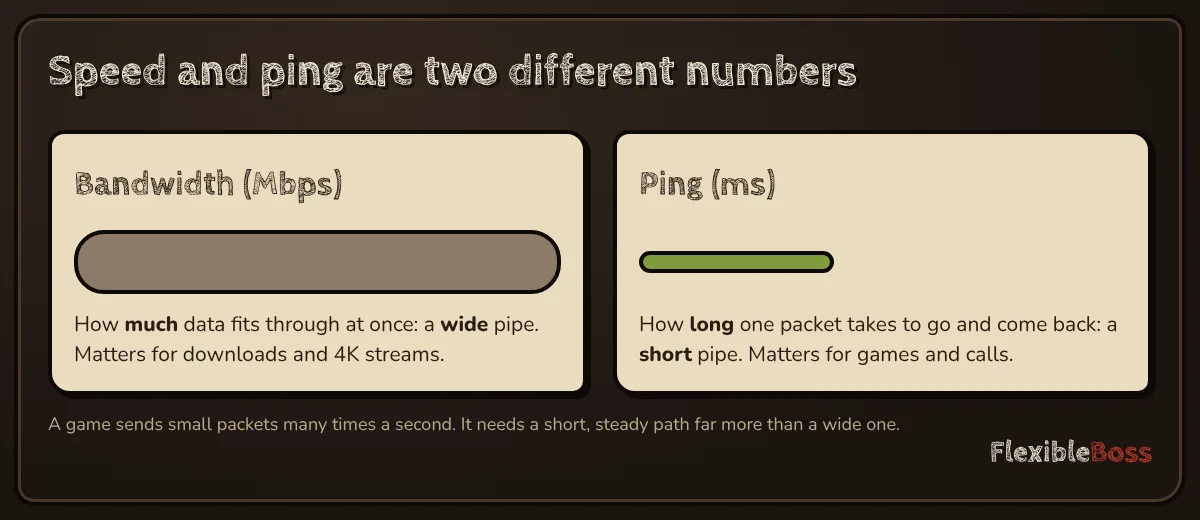
- Bandwidth (Mbps) is how much data your line can carry at once.
- Ping (ms) is how long one packet takes to go and come back.
Games use surprisingly little bandwidth but send small packets many times a second, so the length and stability of the path matter far more than its width. A faster plan helps only when your line is regularly full, for example in a busy household; even then, SQM usually fixes the ping problem without an upgrade.
Myths: what does not lower ping
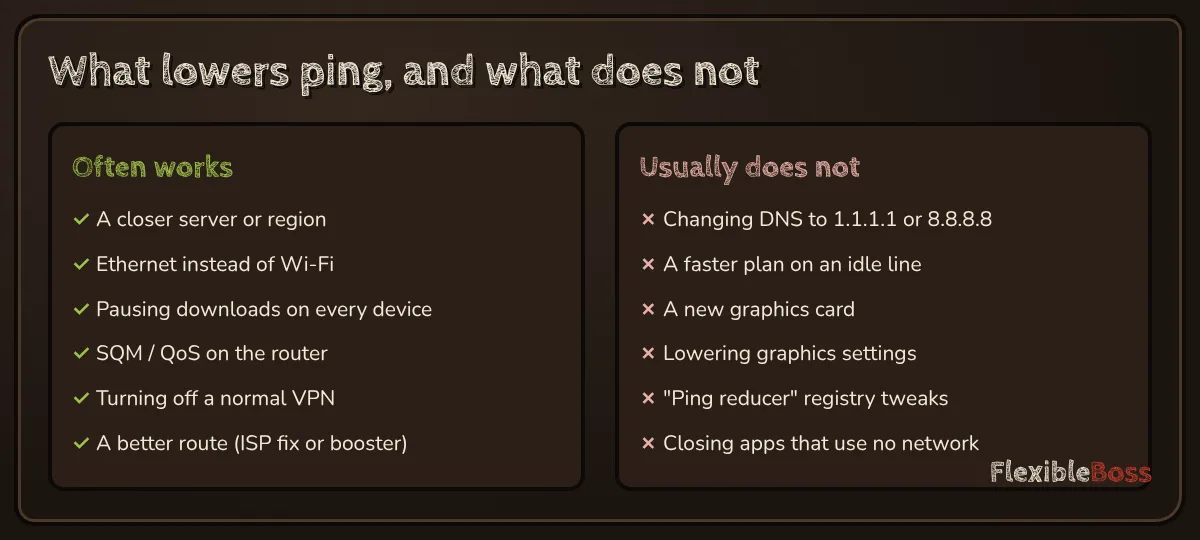
- Changing DNS (1.1.1.1, 8.8.8.8). DNS translates names into addresses when a connection starts. Your in-game packets go straight to the server's address and never touch DNS, so a different DNS server cannot change your ping. It can make websites or lobbies load a little faster, nothing more.
- A new graphics card or lower graphics settings. These raise frame rate and can lower input delay, which can make a game feel more responsive, but your ping number depends on the network path, not on your GPU.
- "Ping reducer" registry tweaks and scripts. Many old Windows tweaks (such as changing TCP settings) target behaviour that most modern games, which use UDP, do not rely on. At best they do nothing; at worst they break something. Avoid tools that ask for admin rights to "optimise" your network.
- Closing apps that use no network. Freeing memory or CPU can raise frame rate, but it does not change ping.
- A faster plan on an idle line. See the section above.
How to reduce ping on PS5, Xbox and Switch
Consoles have fewer settings than PCs, so the fixes are mostly in the router and the room:
- Use a cable. Consoles in a living room are often far from the router; a cable or a powerline adapter makes the biggest difference.
- Run the console's own test after each change: on PS5, Settings → Network → Connection Status → Test Internet Connection; on Xbox, Profile & system → Settings → General → Network settings → Test network speed & statistics.
- Pause console downloads and stop other devices from streaming while you play.
- Enable SQM or QoS on the router and, if it lets you, prioritise the console.
- Pick the closest region in each game's settings when available.
On Switch, most models have no Ethernet port; a USB LAN adapter or the dock's LAN port (on models that have one) does the same job.
How to reduce ping in popular games
- Fortnite: turn on Net Debug Stats (Settings → Game UI) to see ping and packet loss, and set the matchmaking region to the closest one in the game settings. Epic's guide also names jitter and packet loss as causes of lag.
- Roblox: press Shift + F3 to see network stats. Roblox servers are chosen when you join, so if one server is laggy, leaving and joining a different one can help.
- CS2: turn on the telemetry display in the game settings to see ping and packet loss. Community guides warn that the "buffering to smooth over packet loss" option makes the game feel smoother but adds delay.
- Battlefield 6: see our guide to Battlefield 6 high ping, including how to show ping on the scoreboard and what to do when matchmaking sends you to a distant data center.
- ARC Raiders: if the problem is lost packets rather than high ping, follow our ARC Raiders packet loss guide.
Checklist: lower your ping in 15 minutes
- Turn on in-game network stats and write down ping, spikes and packet loss.
- Pick the closest region or server.
- Plug in a cable (or move to 5 GHz near the router).
- Pause downloads, backups and streams on every device.
- Turn off Steam downloads during gameplay and Windows Delivery Optimization sharing.
- Disconnect any normal VPN.
- Run a bufferbloat test; if latency rises under load, enable SQM or QoS.
- Restart the router; update its firmware and your network driver.
- Check the game's server status.
- Still high on a cable at peak hours? Run a traceroute, contact your provider, or test a ping booster's free trial.
Compare your three numbers after each step. When one of them drops, you have found your cause, and you can stop there.
Our take
Most high ping is fixed at home, for free, in less time than one match takes: the right server, a cable, a quiet line and a router that manages its queue. Distance sets a floor that nothing can beat, and DNS tweaks and new hardware are mostly wasted effort. A ping booster earns its place in exactly one case, a poor route through your provider, and the only honest way to know is to test one during a free trial. For more help with specific games and tools, see all our game lag fixes and ping booster reviews.
Frequently asked questions
How do I reduce my ping?
Turn on the game's network stats, choose the closest server region, connect with an Ethernet cable, pause downloads and streams on every device, enable SQM or QoS on your router, stop background updates, and turn off any normal VPN. If ping is still high on a cable at peak hours, the route through your provider is the likely cause: report it with a traceroute, or test a ping booster's free trial.
Is 200 ping bad?
For fast online games, yes: at 200 ms you will see late hits and rubber-banding, and most shooters feel unfair. It is still playable for turn-based or slow strategy games. A ping that high usually means a server far away, Wi-Fi problems or a congested line.
Is 400 ping bad?
Yes, 400 ms is very high for any real-time game. Actions arrive almost half a second late. Check that you are not connected to a server on another continent, that no VPN is running and that nothing is downloading on your network.
Is a ping of 100 bad?
Not bad, but noticeable. 100 ms is fine for most games and many players never notice it, but in competitive shooters and fighting games you will lose close duels against players under 50 ms.
What is a good ping for gaming?
There is no official threshold. As a rule of thumb, under 20 ms is excellent, 20 to 50 ms very good, 50 to 100 ms fine, 100 to 150 ms noticeable and above 150 ms bad for fast games. Stability matters as much: a steady ping with no packet loss feels better than a lower ping that spikes.
Why is my ping so high when I have good Wi-Fi?
A strong Wi-Fi signal does not mean low ping. Wi-Fi shares the air with other devices and networks, which causes spikes and lost packets even at full bars. The server may also be far away, or another device on the network may be downloading. Test on a cable to tell them apart.
Does a faster internet plan lower ping?
Usually not on its own. Speed (bandwidth) is how much data fits through at once; ping is how long one packet takes to go and come back. A faster plan helps only if your line was full, for example when several people stream or download while you play.
Does changing DNS lower ping?
No. DNS only turns a server name into an address when a connection starts. Once you are in a match, your game packets never touch DNS, so a different DNS server cannot change your in-game ping.
Does a VPN lower ping?
A normal VPN usually raises ping, because it sends all your traffic through an extra server. In rare cases, if your provider's route to the game server is very poor, a different path can be shorter. Gaming-specific routing services (ping boosters) are built for that case and only reroute the game.
Can you get 0 ping?
No. Data cannot travel faster than light, and every router along the way adds a little delay. Even on a LAN, ping is above zero; some games simply round very low values down.
How do I lower my ping on PS5 or Xbox?
Use a wired connection, close downloads on the console and other devices, pick the closest region in the game if it lets you, and enable QoS or SQM on your router. Check your connection with the console's own test: on PS5 under Settings, Network, Connection Status; on Xbox under Profile & system, Settings, General, Network settings, Test network speed & statistics.
Sources we checked
Prices, trials and features change often. We re-check these pages before every update; last check 16 November 2026.
- Epic Games: How do I view my network performance details in Fortnite? (Net Debug Stats)
- Epic Games: Fortnite latency and ping troubleshooting (packet loss above about 1%, jitter)
- Xbox Support: Network settings on the Xbox console (Test network speed & statistics)
- Xbox Support: troubleshoot network connection speed
- Roblox Creator Docs: identify performance issues (network stats, ping)
- Microsoft Support: Delivery Optimization in Windows (downloads from other devices)
- EA Help: Troubleshoot ping in Battlefield 6
- Xbox developer docs: QoS packet tagging for multiplayer traffic
- Waveform: Bufferbloat and internet speed test
- Cloudflare: Speed Test (latency while loaded, jitter)