ARC Raiders packet loss and lag: Embark's official fixes, step by step
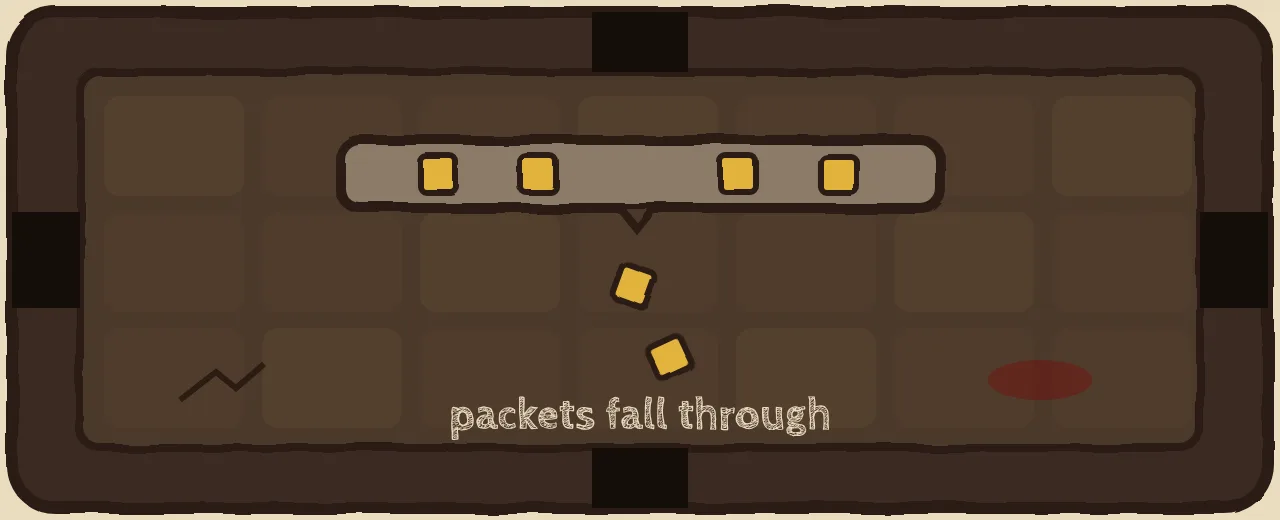
- Embark's own checklist: wired connection, correct device clock, server set to Automatic, Windows network troubleshooter, public DNS, IP renew, no peer-to-peer Windows updates.
- Server setting on PC: gear icon (bottom right) → Gameplay → Server → Automatic.
- Embark advises avoiding VPNs and proxies unless necessary: test any booster carefully and turn it off if it makes things worse.
- If everyone in the raid rubber-bands, it is the server, not you.
Packet loss is the worst kind of lag in an extraction shooter: shots that do not register, enemies that teleport, and, in ARC Raiders, a raid that can end with your gear lost. Embark publishes an official checklist for connection problems on PC. This guide walks through it in a practical order and explains when a ping booster helps, and when Embark's own advice says it can make things worse.
ARC Raiders packet loss: is it you or the server?
Before changing anything, answer one question: is everyone lagging, or just you?
| You notice | Probably |
|---|---|
| Every player in the raid rubber-bands at the same moment | Server-side problem: wait, check official channels |
| Only you teleport or miss hits | Your connection or route |
| Problems only on Wi-Fi | Your Wi-Fi |
| Problems only in the evening | Provider congestion or route |
If it is the server, no fix on your side will help. If it is you, work through the steps below.
How to fix ARC Raiders packet loss: Embark's official PC fixes
These steps come from Embark's help center article "Troubleshooting Connection Issues – PC".
1. Use a wired connection
Embark recommends a wired (Ethernet) connection over Wi-Fi. Wi-Fi is the most common source of packet loss at home: interference, distance from the router and other devices all add up.
2. Sync your device clock
An out-of-sync device clock can cause connectivity issues. In Windows, open the date and time settings and use the option to sync now.
3. Check your matchmaking region
| Platform | Path | Setting |
|---|---|---|
| PC | Gear icon (bottom right) → Gameplay → Server | Automatic |
| Console | Social menu → gear icon (left) → Gameplay → Server | Automatic |
A region set by hand and forgotten after travelling, or after an update, can send you to a distant server.
4. The basics
- Make sure you are on the right network and Wi-Fi is on.
- Avoid VPNs or proxy services unless absolutely necessary, as they can interfere with gameplay.
- Keep Windows up to date: Settings → Update & Security → Windows Update.
5. Run the Windows network troubleshooter
Settings → Network & Internet → Status → Advanced network settings → Network troubleshooter, then follow the instructions.
6. Switch to a public DNS server
Embark suggests a public DNS to improve network stability. DNS does not change your ping during a match, but it can fix connection and matchmaking errors.
7. Renew your IP address
Close all apps, open Command Prompt, then run:
| Command | What it does |
|---|---|
ipconfig /release | Releases your current IP address |
ipconfig /renew | Requests a new one |
ipconfig /flushdns | Clears the DNS cache |
Then restart your PC.
8. Stop peer-to-peer Windows updates
Windows can share updates with other PCs over your connection. Turn it off: Settings → Update & Security → Windows Update → Advanced options → Delivery Optimization → turn off Allow downloads from other PCs.
9. Clear the launcher cache
If problems persist, Embark suggests clearing your launcher cache.
What else causes packet loss at home
Beyond Embark's list, the usual suspects are:
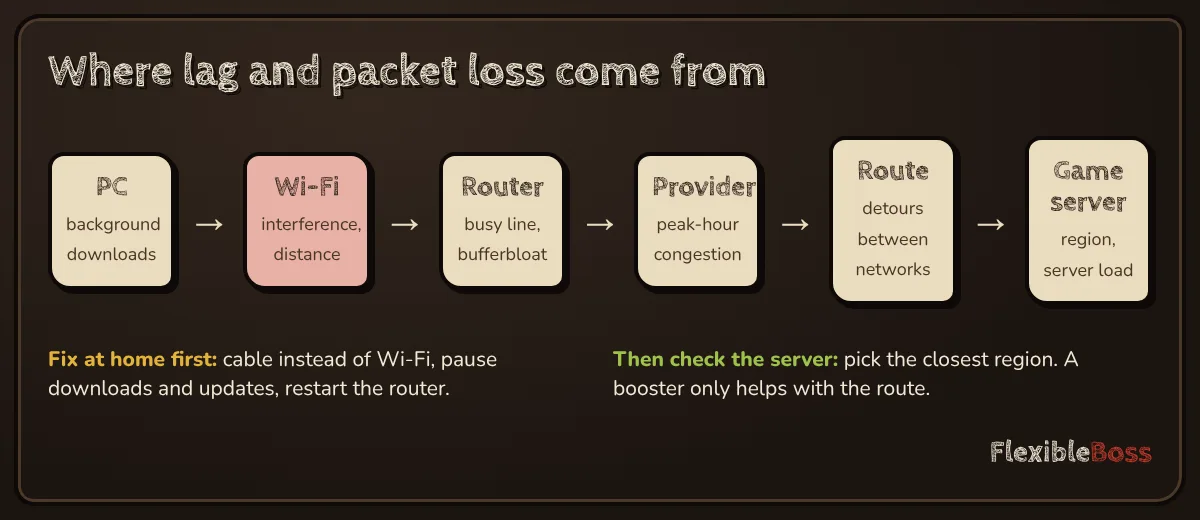
- downloads and streams on the same connection, including game and console updates;
- cloud sync (photos, drives) uploading in the background;
- a router struggling under load (bufferbloat): if your router supports SQM or QoS, turn it on.
Pause them while you raid and check if the loss disappears.
Should you use a ping booster for ARC Raiders?
Be careful here. Embark's own advice is to avoid VPNs and proxies unless absolutely necessary, because they can interfere with gameplay. Game boosters are not general VPNs, but they do reroute your traffic, so treat them as an experiment:
- Follow the steps above first.
- If you still see loss only at certain hours or on certain servers, test a booster with a free trial (see free ping booster).
- Compare a few raids with and without it. If packet loss gets worse, turn it off.
A booster can fix a bad route between your provider and the server. It cannot fix Wi-Fi, a busy home network or a server-side problem.
Our take
Most ARC Raiders packet loss comes from Wi-Fi, a busy network or a wrong server setting, and Embark's checklist covers all three. Do those first; test a booster only if loss remains, and only with a free trial. For other games, see our Battlefield 6 high ping guide.
Frequently asked questions
How do I fix packet loss in ARC Raiders?
Follow Embark's PC checklist: use a wired connection, sync your device clock, set the server to Automatic (gear icon, Gameplay, Server), run the Windows network troubleshooter, switch to a public DNS, renew your IP address, and turn off peer-to-peer Windows updates. Close downloads and streams while you play.
How do I change server region in ARC Raiders?
On PC, click the gear icon at the bottom right, go to Gameplay, then Server. On console, open the Social menu, select the gear icon on the left, then Gameplay and Server. Embark recommends setting it to Automatic.
Does a VPN or ping booster help in ARC Raiders?
Embark advises avoiding VPNs or proxy services unless absolutely necessary, because they can interfere with gameplay. A game booster may help if your provider's route is poor, but test it against your normal connection and turn it off if packet loss gets worse.
Why do I rubber-band in ARC Raiders?
Rubber-banding happens when packets arrive late or get lost, so the server corrects your position. On your side, Wi-Fi, a busy network and background downloads are common causes. If every player in the raid rubber-bands at once, the server is the problem.
Why does the device clock matter for ARC Raiders?
Embark lists an out-of-sync device clock as a possible cause of connectivity issues and recommends syncing it as one of the first steps.
Sources we checked
Prices, trials and features change often. We re-check these pages before every update; last check 11 November 2026.